





Figma Plugins
How to Install and Uninstall a Figma Plugin: A Beginner's Guide
Figma plugins are mini-tools that extend what you can do inside Figma. They help you automate repetitive tasks, generate content, clean up your files, and speed up your workflow. Whether you're a designer, developer, or marketer, plugins can save you hours every week.
In this guide, you'll learn how to install, run, and uninstall Figma plugins so you can start customizing your workflow right away.

How to Install a Figma Plugin
There are two ways to install a Figma plugin: from the Figma Community website, or directly inside the Figma app. Both methods work on the desktop app and in the browser.
Method 1: Install from the Figma Community Website
- Go to figma.com/community/plugins
- Search for the plugin you want (e.g., "RenameVariantsAI" or "Unsplash")
- Click on the plugin card to open its detail page
- Click the blue "Install" button in the top right
- The plugin is now saved to your account and ready to use
Method 2: Install from Inside Figma
- Open any Figma file
- Right-click on the canvas (or press Cmd/Ctrl + /)
- Type the plugin name or browse "Plugins" in the menu
- Click "Run" to try it, or click the three dots (•••) and select "Save to plugins"
- The plugin is now in your saved list for quick access
Tip: When you install a plugin, it becomes available across all your files and teams. You only need to install it once.
How to Run a Figma Plugin
Once a plugin is installed, you can run it in any Figma file. Here's how:
- Open the file where you want to use the plugin
- Right-click anywhere on the canvas
- Hover over "Plugins" in the context menu
- Select "Saved plugins" to see your installed plugins
- Click the plugin name to launch it
Keyboard shortcut: Press Cmd/Ctrl + / to open the quick actions menu, then type the plugin name. This is the fastest way to run any plugin.

How to Uninstall a Figma Plugin
If a plugin is cluttering your list or you no longer need it, you can remove it. Uninstalling a plugin doesn't delete any work you've done with it.
Method 1: Uninstall from Inside Figma
- Right-click on the canvas
- Go to Plugins → Saved plugins
- Hover over the plugin you want to remove
- Click the three dots (•••) next to the plugin name
- Select "Remove from saved plugins"
Method 2: Uninstall from the Community Page
- Go to the plugin's page on Figma Community
- Click the "Installed" button (it replaces the Install button after installation)
- The plugin is removed from your saved list
Managing Your Plugin Library
As you discover more plugins, your saved list can grow quickly. Here are some tips to keep it manageable:

- Remove plugins you haven't used in months - you can always reinstall them later
- Use the quick actions menu (Cmd/Ctrl + /) to search by name instead of scrolling through your list
- Try plugins before saving them - use "Run" first to see if they fit your workflow
- Check for plugin updates - developers frequently add features and fix bugs
Recommended Plugins to Get Started
Looking for plugins that actually save time? Here are a few from the BiblioKit suite designed for designers and design system maintainers:
- RenameVariantsAI - Batch rename layers and variants with AI assistance
- ComponentQA - Audit your design system and find detached instances
- BiblioClean - Remove all prototype links in one click
- FixTable - Normalize messy table structures to proper Auto Layout
Each plugin is free to try and built to solve real workflow headaches.
Conclusion
Installing and uninstalling Figma plugins is straightforward once you know where to look. Start with a few essential plugins, try them out, and build a toolkit that matches your workflow. The right plugins can turn repetitive tasks into one-click actions.
Ready to level up? Check out The Ultimate Figma Plugin Stack for a curated list of 8 plugins that save designers hours every week.
Tools for this workflow
Recommended BiblioKit Plugins
FAQs
Frequently Asked Questions
Quick, action-focused answers pulled from this playbook so you can apply it faster.
Are Figma plugins free to use?
Many Figma plugins are free. Some offer premium features or require a subscription. You can always check the plugin's Community page for pricing details before installing.
Do Figma plugins work on the free plan?
Yes, Figma plugins work on all plans including the free Starter plan. Plugin availability is not restricted by your Figma subscription tier.
Can I use Figma plugins in FigJam?
FigJam has its own set of plugins (called widgets and plugins) separate from Figma design plugins. Some developers create versions for both, but they are not automatically cross-compatible.
How do I update a Figma plugin?
Figma plugins update automatically. When a developer publishes a new version, you'll get it the next time you run the plugin. There's no manual update process required.
Learn
Design Ops Fundamentals
We built this evergreen mental model so designers, developers, and marketers can align design systems, handoff, implementation, launch, and campaigns.
Read the guideNext & previous

Before
Best Practices for Effective Design System Guidelines
Build design system guidelines that keep components consistent and shipping speeds up.
Design Systems • 9 min read
Next
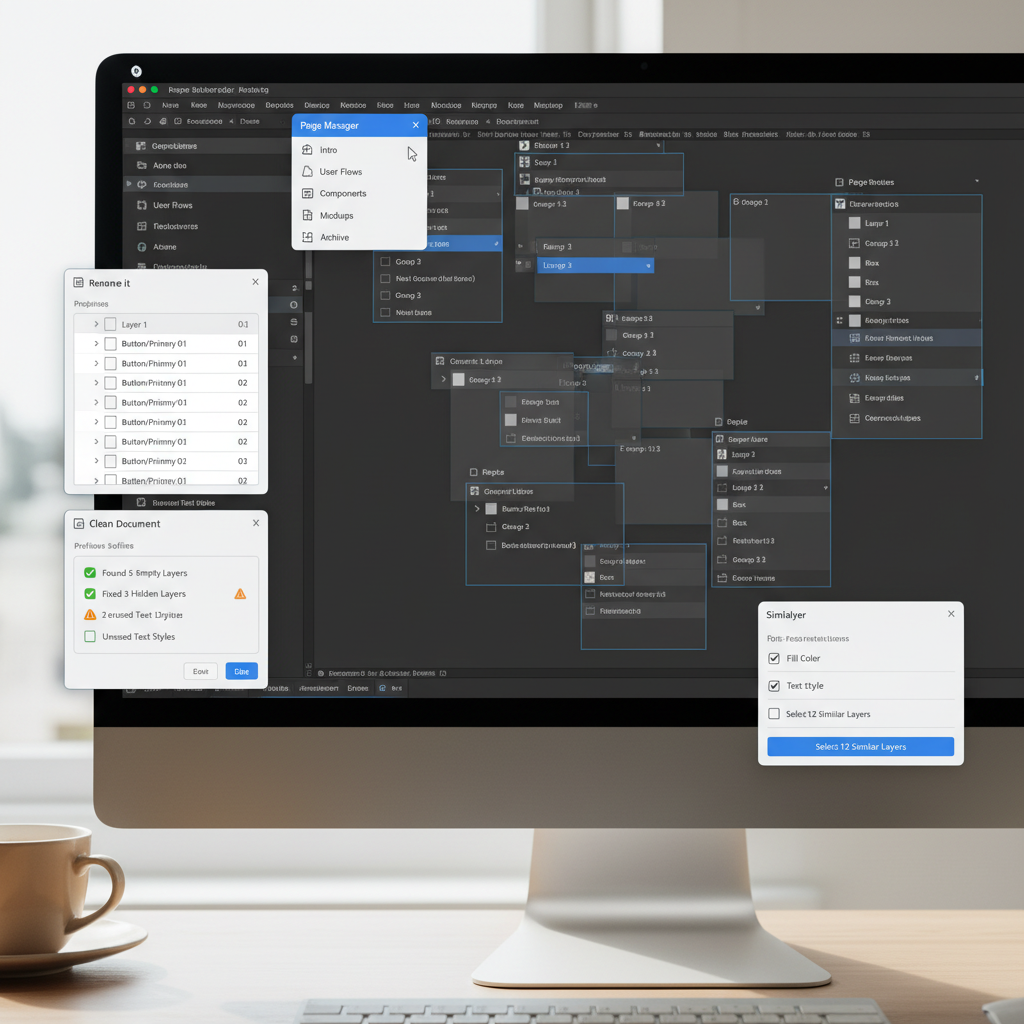
Stop the Chaos: The Best Figma Plugins to Organize Design Files in 2026
Organize Figma files fast with the best plugins for cleanup, naming, and handoff safety so teams ship without chaos.
Figma Plugins • 4 min read
Related articles

Scaling Your Design System: A practical guide to scalability and cross-team collaboration
Scale design systems with governance models, architecture patterns, tokens, and team collaboration strategies.
Design Systems • 12 min read
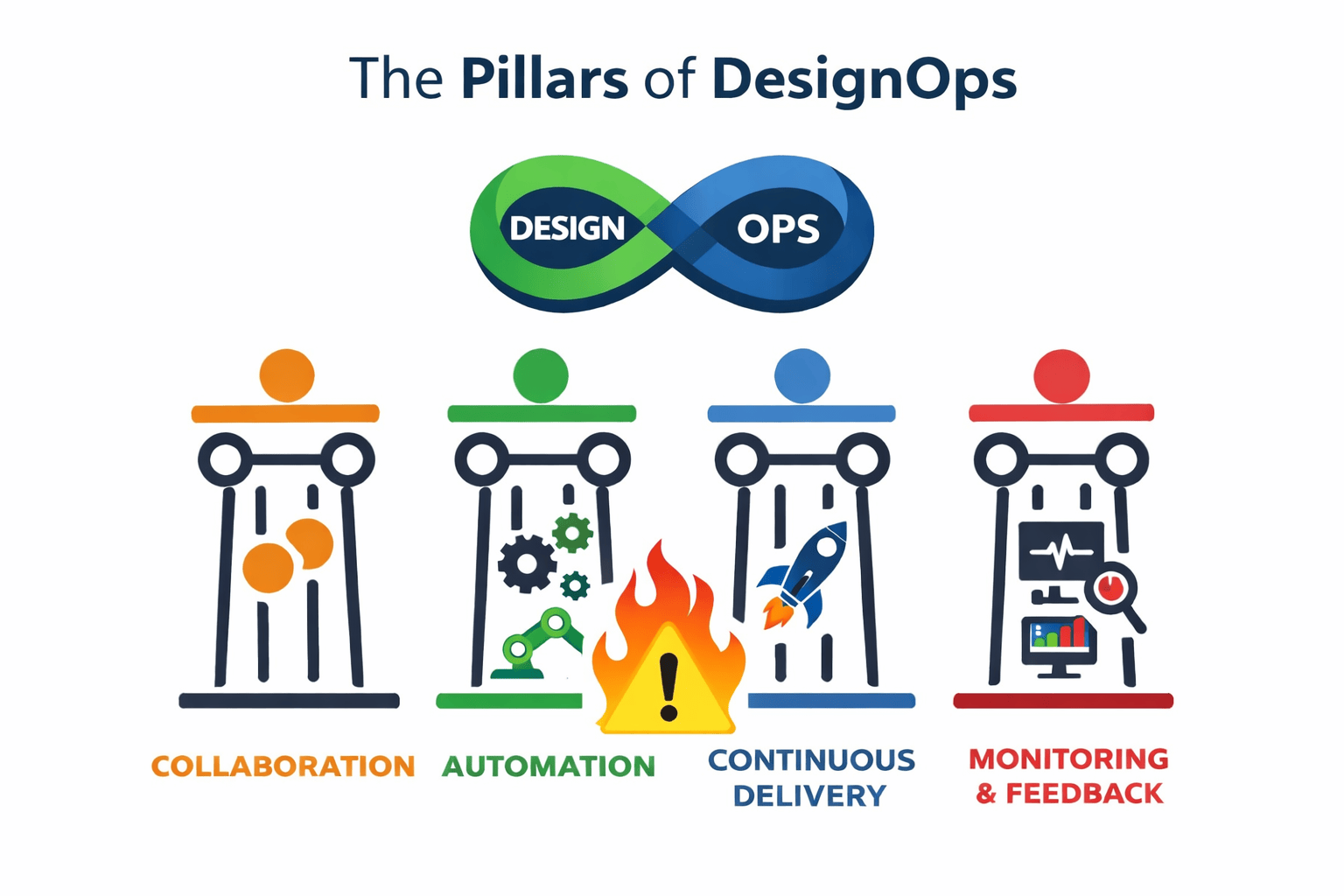
What is Design Ops? The Complete Guide
Build a Design Ops system that frees designers, developers, and marketers from busywork, aligns workflows, and speeds launches.
Design Ops • 5 min read
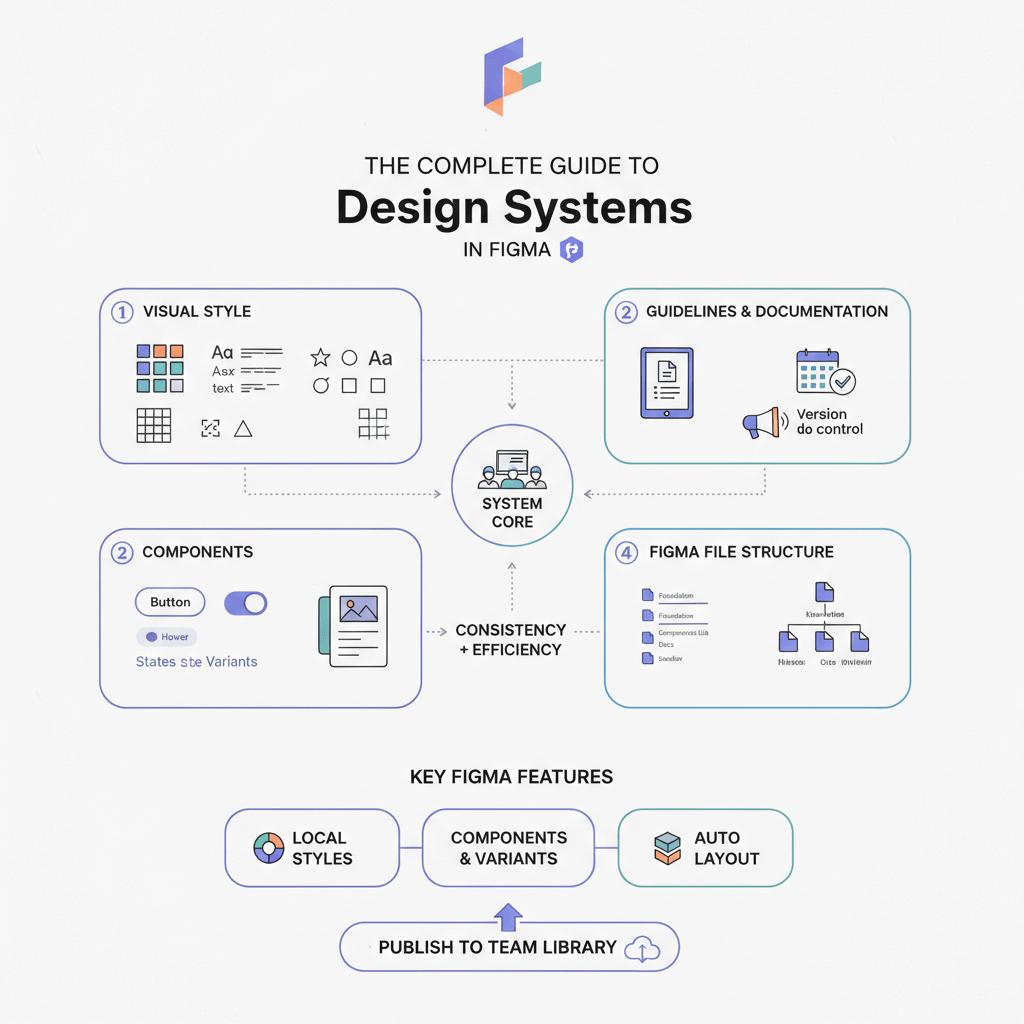
The Complete Guide to Design Systems in Figma (2026 Edition)
Upgrade Figma design systems for 2026 with variable-first architecture, AI cleanup, and Code Connect to scale without drift.
Design Systems • 6 min read